Viking and QGIS – Importing Position Data
In an earlier post I covered a project that tracked position, https://www.cloudacm.com/?p=4728. The data is stored as a CSV file. This format is easier to work with in a spreadsheet but lacks visual map details. This post will cover basic steps on how I import the tracks in Viking and QGIS.
The first step is merging data files if they span a given trip. I append the data files sequentially in a spreadsheet. I’ve noticed that some rows contain garbage, which is easy to fix with a search and replace step. Then I’ll copy the columns containing latitude and longitude readings and paste them to a new spreadsheet. Finally, I’ll save it as a CSV format. The final file only contains the position readings without any header information.
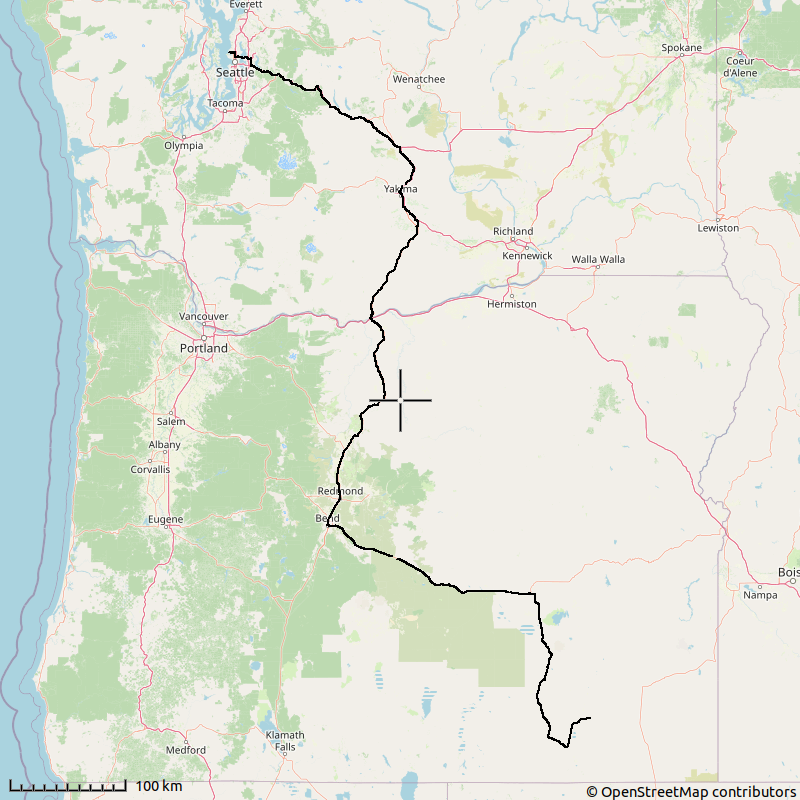
Importing the file in Viking is done with these steps. First open a new TrackWaypoint layer and select it. Then from File > Aquire > Import File with GPSBabel, select the CSV file and set the file type to Comma separated values and click OK. The imported file layer properties will draw labels by default which I remove by unchecking the Draw Labels box. I’ll then set the Waypoint marker to Circle, set its size to 2, and uncheck the Draw Waypoint Symbols box. Finally, I’ll add a map layer. If all looks fine, I can generate an image file which is displayed below.
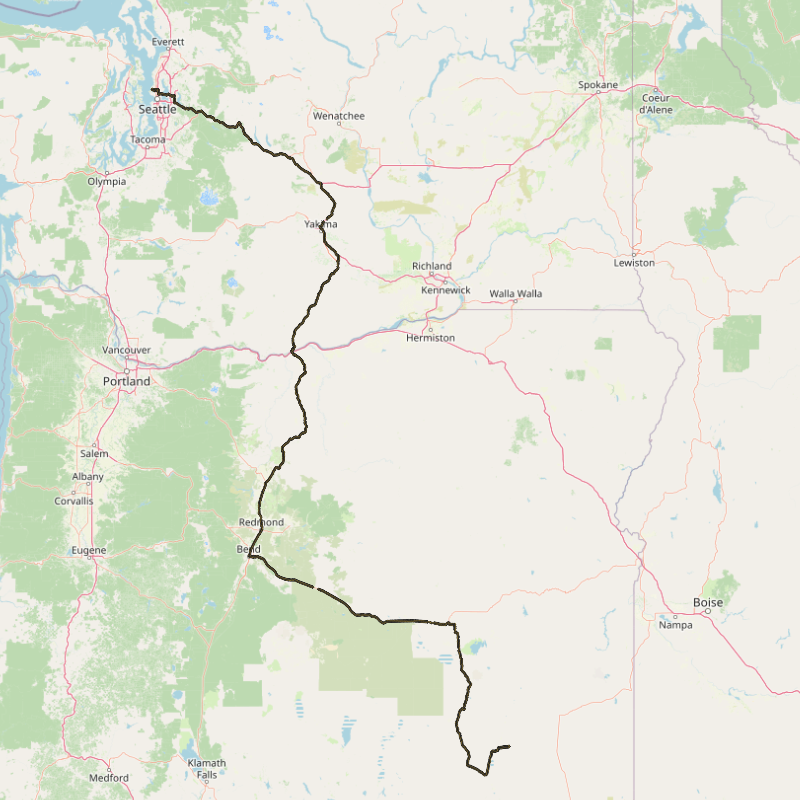
Importing the file into QGIS is done with these steps. Open Data Source Manager and select Delimited Text. Browse to the data file and set File format to CSV. Uncheck First record has field names. Set Point coordinates with X field as field_2 and Y field as field_1. Geometry CRS can be set to Default CRS. I set the data track symbology size to .40. Next I’ll add the XYZ Tiles OpenStreetMap. The layers should be sorted with the track on top of the map tile. Finally, I’ll export the map to an image format by selecting Project > Import/Export > Export Map to Image with the dimensions of my choosing. Below is an example.
QGIS has many more features, with this post just scratching the surface on what it can do. I referenced this link on how to import my CSV file, https://www.qgistutorials.com/en/docs/3/importing_spreadsheets_csv.html.
Viking GIT releases can be found here, https://github.com/viking-gps/viking/releases
QGIS GIT releases can be found here, https://github.com/qgis/QGIS/releases